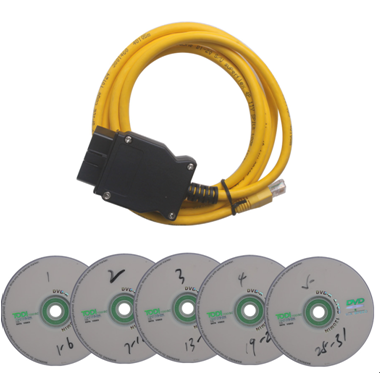
Are you searching for a step-by-step BMW Cruise Control Coding guide? Here you go! Below you will know how use E-Sys and ENET cable to VO Code BMW F45 F46 F48 Cruise Control to enable this feature.
Note:
Once
you have your Cruise Control switch physically installed, you will need
to enable your Cruise Control feature in your car through "VO coding".
BMW Cruise Control Coding Steps with BMW ENET Coding Cable and BMW E-Sys 3.27.1
1) Start your E-Sys, Click "Read" button and then "Active FA":
2) Go to "SALAPA-Element" and right click and select "Edit":
3) Add the value "544," into the SALAPA-Element and click the save button on the right as highlighted.
4) Click the "save" button to save the file into a XML file with your desired file name.
5) Go to "VCM" section and load the same XML file that you had saved.
6) Right click "calculate FP" and you will see the Vehicle Profile generated.
7) Click the "Write FA FP" button once you are satisfied with your settings which will writes into your ECU memory.
8) To enable Cruise Control for F45/F46/F48, you will need to VO code these 4 modules for F45/F46/ F48:
BDC_BODY
HU_ENTRYNAV
KOMBI (or BKOMBI)
DSC2
9)
Go to "Coding" section, click "Read ECU" button on the right and then
right click on the above-mentioned modules and select "Code". This will
enable the settings required for your Cruise Control. Note that the
engine need not be switched off for this operation to work successfully.
10) Test your Cruise Control switch to ensure that it has been enabled successfully! Congratulations!
Article from:http://blog.uobdii.com/bmw-coding-guide-how-to-vo-code-f45-f46-f48-cruise-control/
OBD2 Cable and Connector,include: obdi to obdii cable,scan tool's main unit cable, testing cable, RS232 to RS458 cable, RS232 to lan cable, lan cable, USB cable and more
Showing posts with label BMW ENET. Show all posts
Saturday, April 8, 2017
Monday, April 3, 2017
BMW VO Coding steps with E-Sys 3.28.1 and ENET Cable
Do you know how to edit BMW VO/FA Vehicle Order by using latest E-Sys 3.28.1 and BMW ENET Coding Cable? Check below a step-by-step guide for you!
BMW VO Coding Preparation
1. Free download newest BMW E-Sys software E-Sys 3.28.1 from here:
2. Get a cheap $16.99 BMW ENET Cable to connect E-Sys with your car.
BMW VO Coding Steps
Step 1
Open E-Sys 3.28.1 and first select the target chassis.
Step 2
Go to the “Expert Mode”, choose “Coding”, click “Read” button to bring up the FAList.
Click the “Save” button to save the file to any folder on your computer for next editing.
Step 3
Choose “FA-Editor” then open the FAList file as below:
Open the “FAList” folder on the left and expand it until you see the “SALAPA-element” folder.
You can see many codes they respectively mean the values of the function into the vehicle options.
For the codes meaning you can check this picture:
Now you can delete or add FA from the bottom left window.
Then click the apply changes icon as 2 and click button as 3 to save.
Step 4
In this step you need to upload a list of vehicle options stored in My Computer to your car.
Choose “VCM” below “Expert Mode” menu and open the FAList file as below:
New FA must be verified before it can be written to car.
So right click on FA folder and choose “calculate FP”. FP is a vehicle profile.
Expand the SALAPA-Element folder and check the option codes you entered are correct or not.
Step 5
After checking you can upload a list of vehicle options to your vehicle.
Select VCM “Master” tab at the bottom and click “Write FA FP” button on FA FP section.
Now you successfully change the FA, that is to say BMW VO Coding procedure is basically complete.
Step 6
To fully complete it, you also need to activate the option value you changed.
For example, if VO coding edited function related to FRM module, you should initialize the FRM module and activate its value with coding.
You need to activate FA, read SVT, select FRM module then click “Code” button.
Sunday, July 31, 2016
BMW ENET cable to do BMW F-series coding
Received my BMW ENET cable and did some DIY job for F30 already.
This BMW ENET (Ethernet to OBD) Interface Cable is designed to work on BMW F-series alone. Let’s go straight to the point.
You need:
A BMW ENET cable
E-Sys program, datafiles, token and PIN
A PC/laptop running Windows XP system (mine second-hand Panasonic Win xp 64 bit OS)
Just spending a little money and you will get a powerful ENET cable for €11.00 without postage. I recommend get one from UOBDII.COM which offers good technical support. Usually, after he receives payment, they can have the cable shipped as soon as possible and arrive with you between 3 to 4 days.
I have found some clue on how to solder the cable list as below. Better understanding with the pictures guidance.
Then please refer the pdf guide here E-Sys – MacOSX installation and configuration.pdf to start install the E-Sys. As soon as you start the vehicle, the E-Sys program will automatically saves the CAF files into “C:ESysDataCAF”. Then copy all these files on to the certain folder.
After that, please do as the following steps:
1) Connect the laptop to vehicle and click the connect symbol
2) Select “F20”(not F020 direct) and click connect. Close the popping out message when you see your car VIN, if not, repeat the progress again.
3) Accept following windows message and close the program
4) Switch to coding mode, go to expert mode and click on coding icon on the left vertical pane.
5) Come to the coding program. Click Read button under the VO pane and then FA appears
6) Now Click on Read VCM or Read button under VCM pane. You will find it it will be on your right hand-Center
7) All the ECU’s will display on the main program. Then expand the ECU’s and all most all ECU’s will have a file starting with CAF (With green indicator) right click on the CAF file and select Read coding data, ignore whose who did not contain CAF. But remember do not click all CAF files. Four or five is the maximum.
8) After complete above procedures, go to c:/esydata/CAF. All the .ncd files have been generated on the CAF folder.
9) Copy .ncd files and on your pc or laptop. Run the software program and then start to do F30 coding according to the window instructions.
I have successfully realized these things by using the ENET cable:
–Remove PDC + cam disclaimer
– Mirrors open automatically when closed with comfort access
–Change DVD region code
– Remove disclaimer
– Video in Motion
– Turned the Seatbelt Gong off
– Side View Cameras on at all speeds
– Change DVD region code
– Tire pressure + temperature in TPMS
– Mirrors close by pressing doorknob (comfort access only)
– Disable A.S.S. by default (can still be enabled but starts with setting ‘off’)
– Remember last setting of A.S.S. (works only when not disabled by default)
– Change ringtones
…
I am still working on it and will figure out more functions later. I have to clearly that these are all the tested result on F30. I am not sure how other F-series works.
Article from:http://blog.uobdii.com site:
Subscribe to:
Posts (Atom)